
Tab Overview - Activities
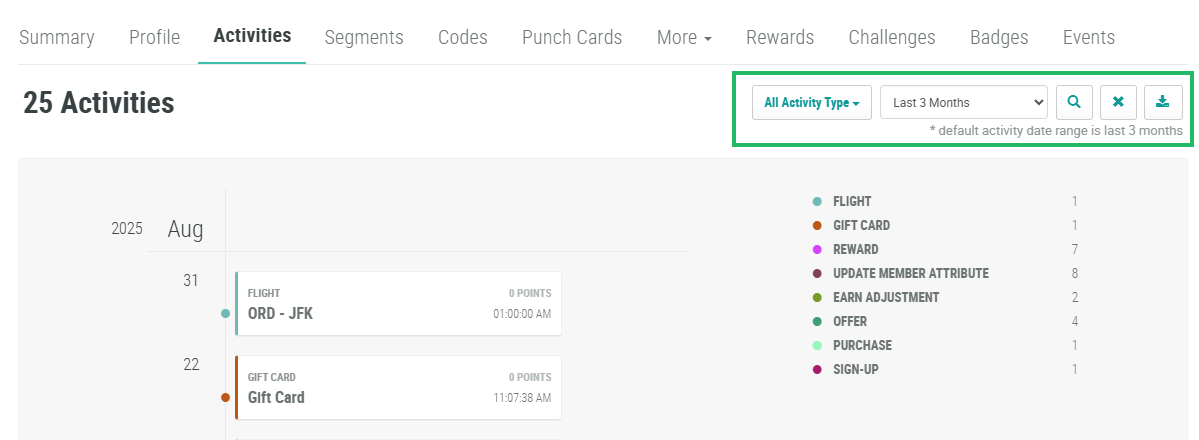
The Activities tab provides a timeline of Member actions, such as signing up for your loyalty program, earning an Offer, making a purchase, redeeming a Reward, and so forth. Within the timeline, the different Activity Types are color-coded. The legend in the top-right corner of the tab indicates the color for each Activity Type, as well as a count.
Optionally, you can use the filter options to limit the Activities displayed on the screen. To apply a filter:
-
Optionally, from the Activity Type drop-down menu, select one or more Activity Types. The default filter is All Activity Types.
-
Optionally, from the date range drop-down menu, select the desired date range of when the Activity occurred. The default date filter is Last 3 Months.
-
Click the Search icon. The Activities tab is refreshed to show only the Activity records that meet your search criteria.
-
Optionally, to revert to the default filters, click the Remove icon.
To view the full details of a specific Activity, click the Activity item within the timeline. The platform displays a pop-up window populated with the full Activity record, including all parameters and their values. From this pop-up window, you can cancel or resubmit the Activity.
From the Activities tab, you can also download one or more full Activity records.
